Do you know which of your requirements are covered by tests — and which aren’t? PractiTest gives you many ways to see the complete picture.
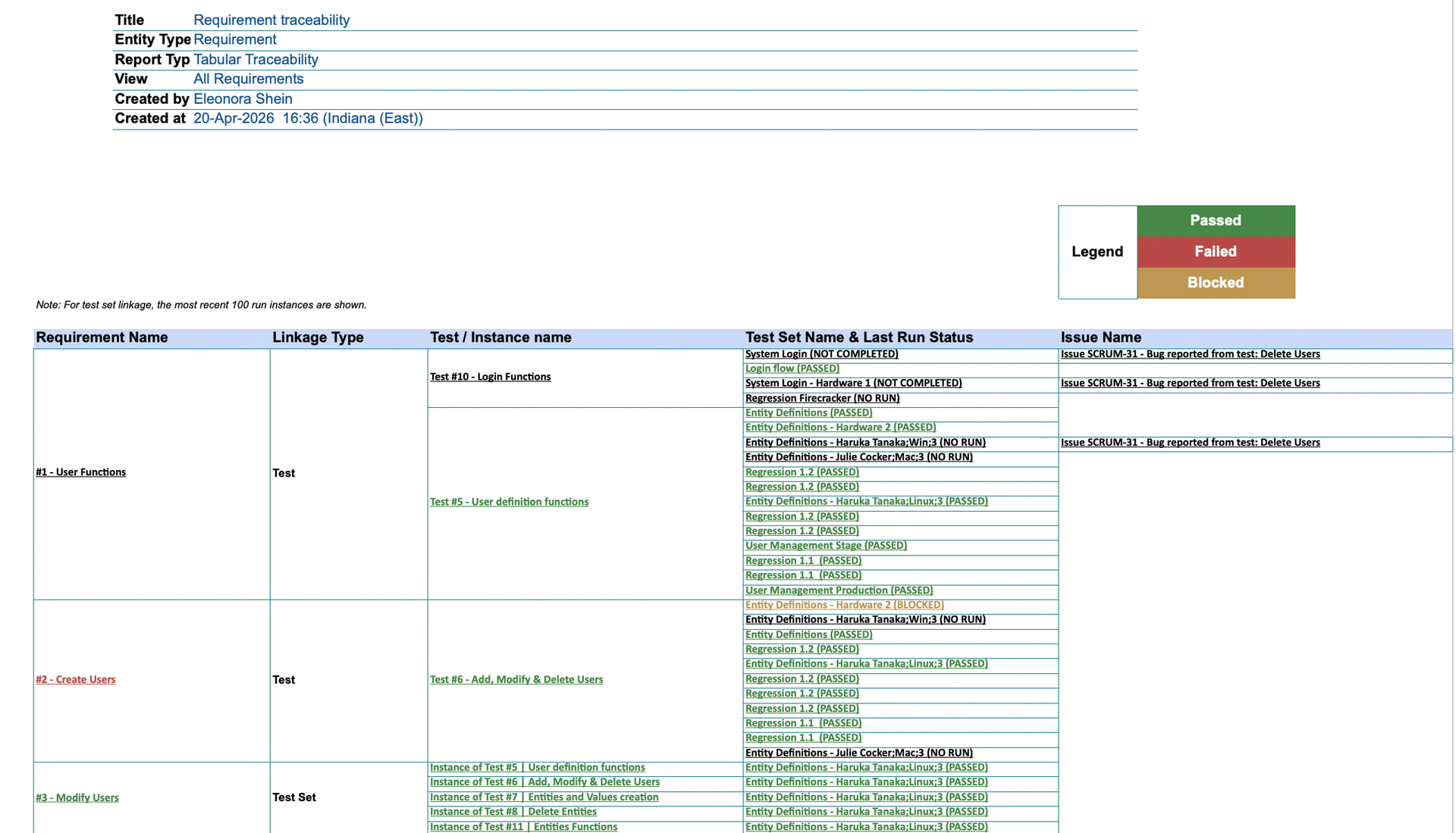
- The Tabular Traceability Report, available in the Reports module, shows you for each requirement the linked tests, Test Set, last run status, and associated issues. Filter it by sprint, release, feature, or any requirement filter you already use, and export to Excel for sharing with stakeholders.
To set it up, go to Reports (main menu) → Click on New Report → Select Tabular Traceability report for Requirements → Select filter (if you don’t see any filters, you have to create them in your Requirements module first; see how to create a filter here).
- The Traceability Dashboard Widget keeps coverage visible at all times — no need to run a report. Add it to any dashboard tab via Dashboard (main menu) → New Dashboard Item → Entity: Requirements, Item Type: Traceability, and click on Advanced settings if you want to apply a filer. That way your team can land on a live, color-coded view of requirement coverage every time they log in.
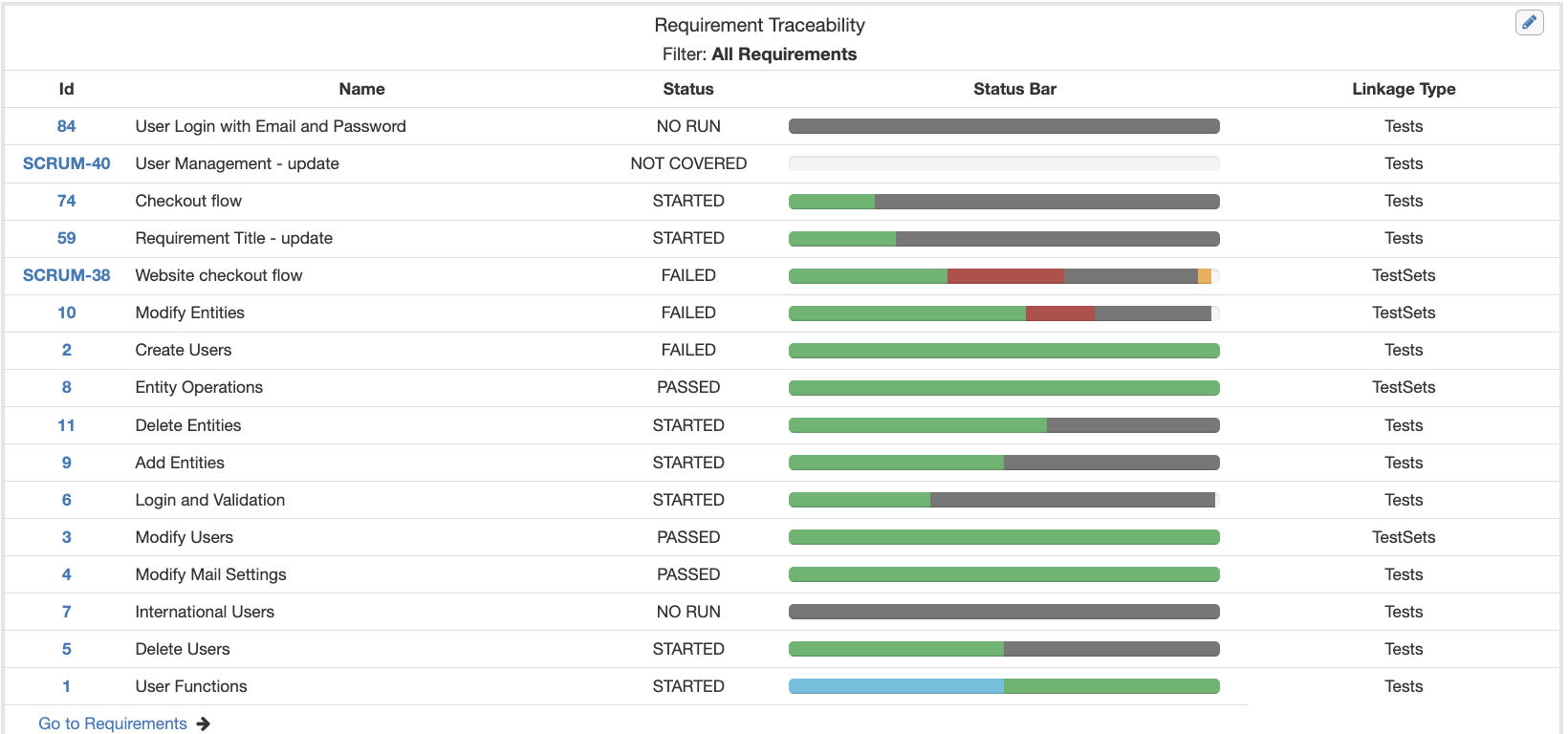
Together they answer the most important question in QA before a release: what’s covered, what’s failing, and what hasn’t been tested at all?