The Challenge: Before release, you need visibility into which requirements are actually tested. Untested requirements are hidden risks that could slip into production.
3 Ways to Find Coverage Gaps
Method 1: Tabular Traceability Report Best for detailed analysis and stakeholder communication.
- Go to Reports (main menu) → Find Requirements section → New Report
- Select Tabular Traceability report (for Requirements) → I want this report
- Apply filters (by sprint, release, feature, or custom requirement filters)
- Click Generate
The report shows each requirement with its linked tests (or blank if zero coverage), the Test Set name, last run status, and associated issues. Export to Excel to share findings with stakeholders or management.
Method 2: Traceability Dashboard Widget Best for real-time visibility without manual reporting.
- Go to Dashboard (main menu) → New Dashboard Item
- Entity: Requirements
- Item Type: Traceability
- Apply filters (by sprint, release, feature, or custom requirement filters)
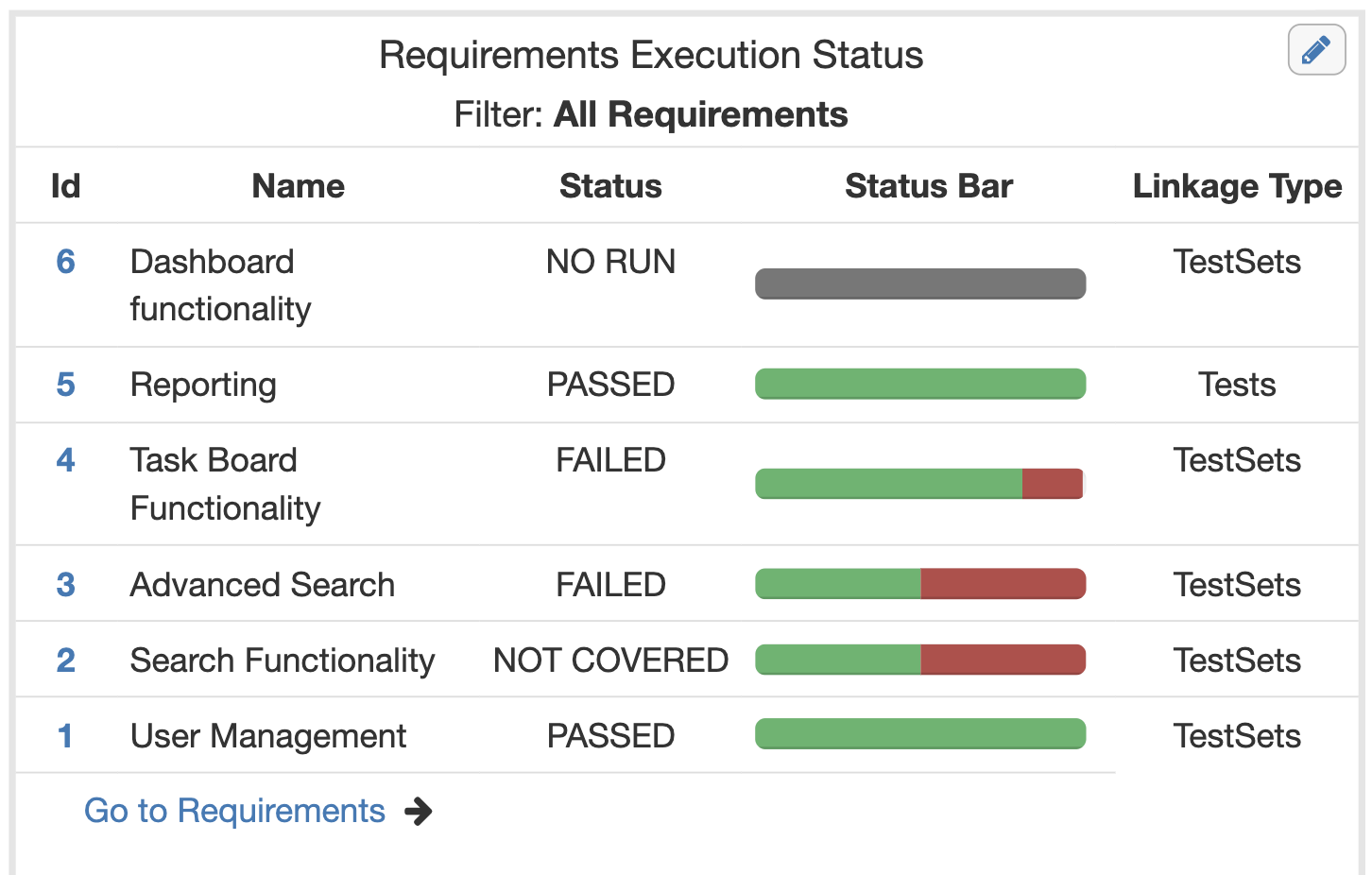
The widget displays color-coded coverage at a glance and updates live every time you log in. Add it to your team’s default dashboard so everyone sees coverage status when they start their day.
Method 3: Testing Progress Bar (Requirements Module) Best for quick scanning while working in your Requirements module.
- Open your Requirements module grid
- Click on 3 dots next to “All Requirements” → Drag and drop “Testing Progress” and “Requirement Status Bar” to displayed columns
- Scan visually—empty bars indicate zero coverage
- Apply filters on the left hand side (by sprint, release, feature, or custom requirement filters)
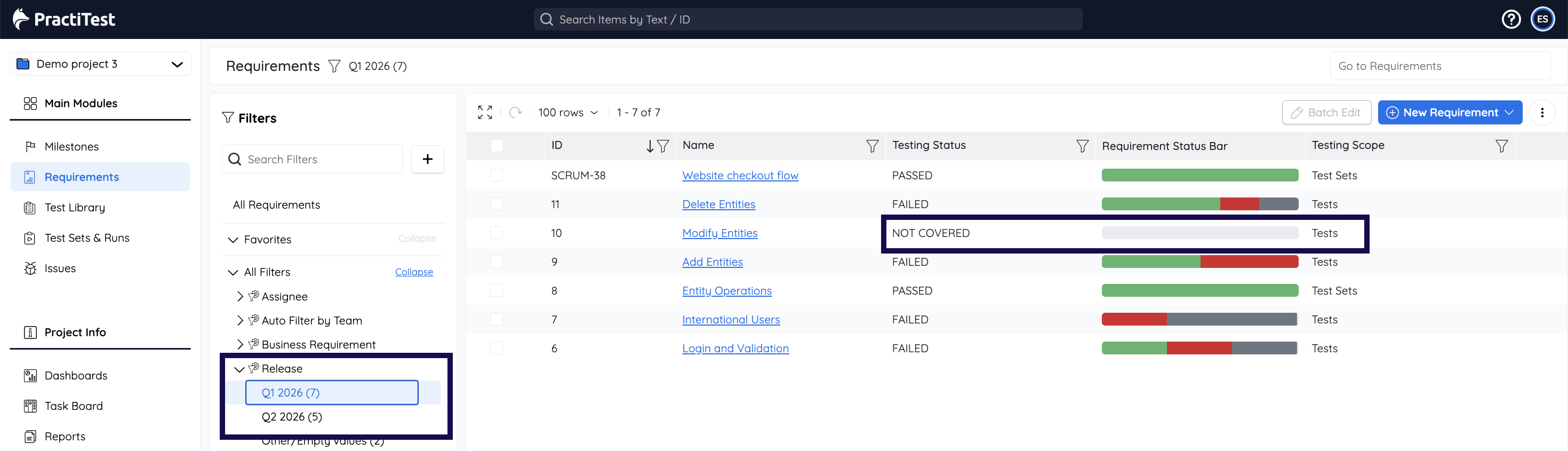
You can also filter to show only requirements with 0% coverage, making it easy to bulk-identify and assign gaps to team members.
 Setup Required: For coverage data to work, your requirements must be created or imported into PractiTest AND linked to tests or Test Sets.